
This blueprint provides a step-by-step guide to configuring a Single Sign-On (SSO) arrangement using Security Assertion Markup Language (SAML) based Single Sign-On (SSO) to access a Responsiv Unity Process Node. The node is running the IBM BPM server on an IBM WebSphere Application Server v8.5 (WAS).
Problem Description and Scope
Security Assertion Markup Language (SAML) is an XML-based open standard that enables Identity providers (IdPs) to pass identity data to Service providers (SPs). It can be used as the basis for setting up single sign-on (SSO) access across multiple applications within an Enterprise.
This article will look at configuring a SAML SSO implementation to access the IBM BPM Process Portal user interface running on a Responsiv Unity Process Node. SAML considers the Node to be the Service Provider.
The product used to perform the SAML Identity provider (IdP) role here is IBM Security Access Manager (ISAM). In other Enterprise Integration scenarios this role may be performed by Microsoft Azure AD or another identity management platform.
Identity Provider – Create SAML 2.0 Federation on ISAM
To install and configure the Identity Provider (IdP) follow instructions in the IBM Security Access Manager Federation Cookbook (for v9.0.6) relevant to the Identity Provider. The book covers using ISAM as a Service Provider (SP) but here we will be setting up the BPM server running on WebSphere (WAS) as the SP. The following instructions assume that ISAM already setup with a runtime and a reverse proxy (RP).
The following changes were made In the RP configuration file:

Load the certificate from the WebSphere server as a signer certificate into the pdsrv certificate database (used by WebSeal reverse proxies).
Now follow the steps below from chapter 6:
- Upload mapping rules (javascript files)
- Create the federation (under the Secure Federation application of ISAM – accessed in the LMI management Interface). Details were entered per the below snippets in order to establish the federation.
- The details of this SAML federation were then exported to an xml file for import at the Service Provider end.
The Resulting Federation Details:
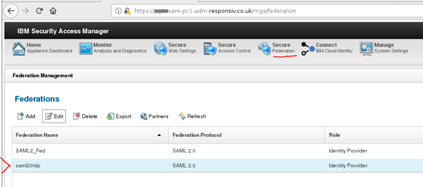

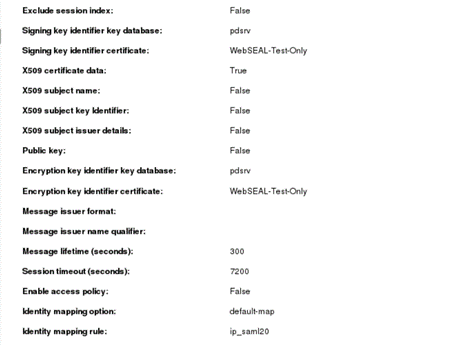
The Federation details were exported to generate the federation_metadata XML file. This is imported later into the Service Provider (SP) (i.e. imported into WAS).
Service Provider Configuration (WAS)
Working through the relevant section of the IBM WAS documentation on the IBM Knowledge Centre (KC):
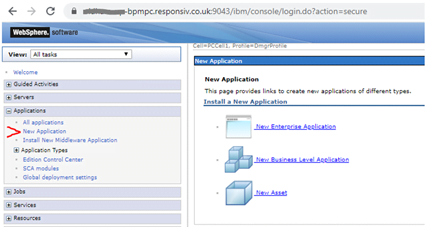
Firstly, create a new Enterprise Application to install the WebsphereSamlSP.ear file (find in the installable apps folder at the WAS home location – detailed below for both Unity versions).
- WAS Home on Unity 4 Process Node: /opt/ibm/BPM/v8.5
- WAS Home on Unity 5 Process Node: /responsiv/modules/3RDv5.0/BAW/install/BPM
This SAML application installation can be done using the WebSphere administrative console as shown below.
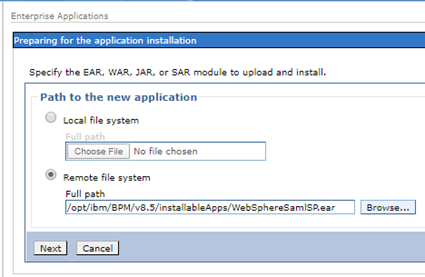
Take the default options:

Click Finish.
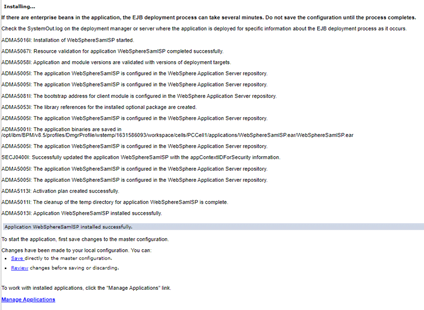
Save to the master configuration when prompted.
See it listed in the applications list and start it (using the select & submit actions):


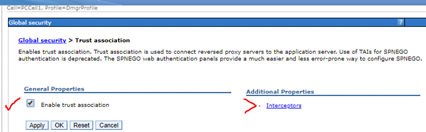
Enabling the Trust Association Interceptor (TAI). Navigate through Global security > Web and SIP security > Trust Association to reach the menu shown below.
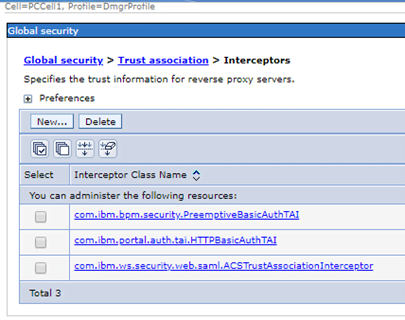
Setting the interceptor details:
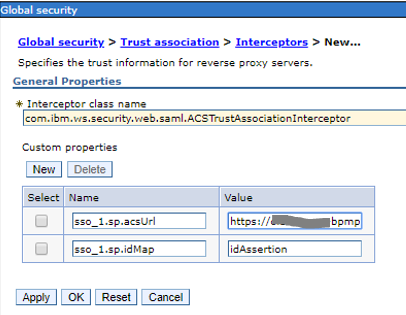
For the acsUrl (ACS = Assertion consumer service) set the value to https://<server>.<domain>:9443/samlsps/ProcessPortal
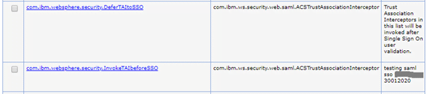
Updating custom properties for name com.ibm.websphere.security.DeferTAItoSSO.

Possible VALUE BEFORE:
com.ibm.ws.security.spnego.TrustAssociationInterceptorImpl
VALUE AFTER:
com.ibm.ws.security.web.saml.ACSTrustAssociationInterceptor
Also setup for name com.ibm.websphere.security.InvokeTAIbeforeSSO.
Value to be: com.ibm.ws.security.web.saml.ACSTrustAssociationInterceptor
Restart the WebSphere deployment manager.
Also check synchronisation across nodes:

Defining the ISAM Identity Provider (IdP) to the BMP Service Partner (SP)
The following step, carried out on the WAS SP, was taken from the below ISAM documentation link:
Configuring single sign-on (SSO) partners
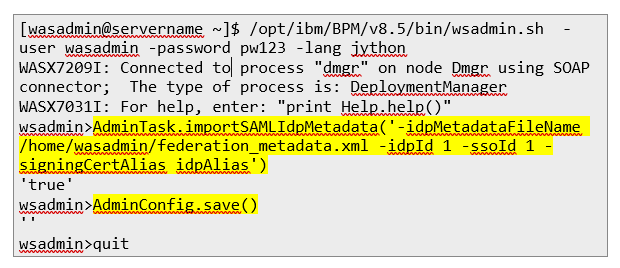
Execute the following commands on the Linux server hosting the WAS deployment manager. This Imports the federation_metadata.xml file previously generated from the Federations screen on ISAM.
Then add the certificate from the ISAM (IdP) reverse proxy into the WebSphere Cell default trust store.
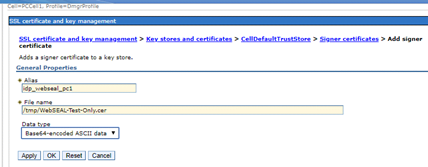
Check result in list of Signer certificates.
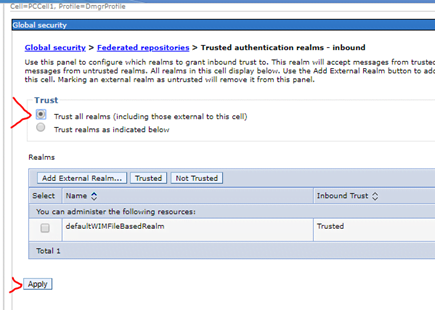
Add idp realms inbound trust (ALL):
Identity Provider – Partner Setup (ISAM)
Ready to import SP federation xml into the IdP (ISAM).
Snippets below of ISAM.
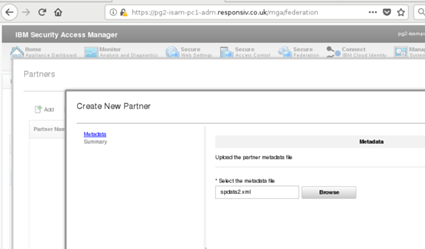
Take default for the following screens:
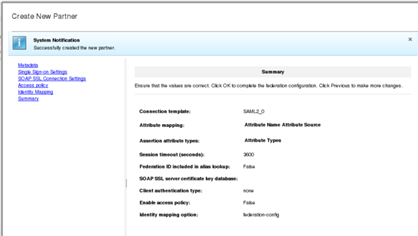
Result:
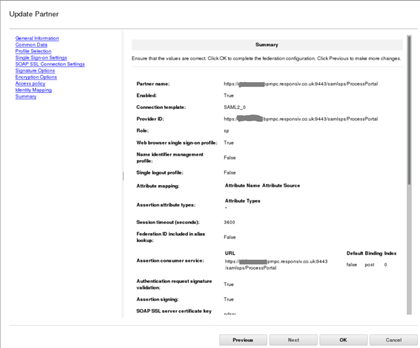
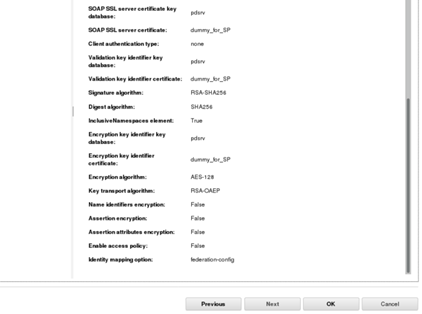
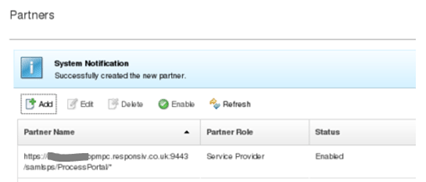
Hint: It was also necessary to create a dummy self-signed personal certificate in the pdsrv certificate database on behalf of the WAS server name. This Is used In the SP partner configuration on ISAM – as seen above in the two key identifier fields.
The next step is to add a federation to the Reverse Proxy as shown below:
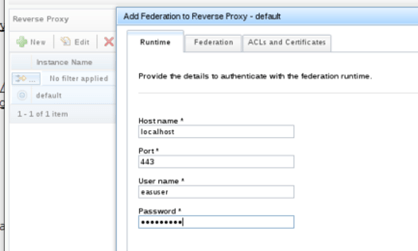
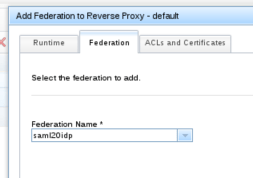
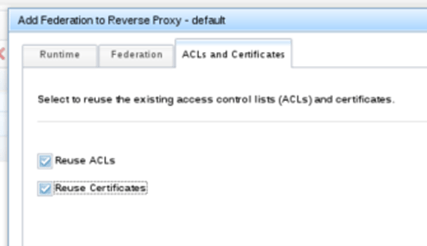
I chose below but cookbook has unchecked for reuse:
Next carry out instructions from chapter 8.1.2 – environment specific configuration. This included adding a new stanza at the end of the RP configuration file as below:
[junction:/isam]
reset-cookies-list = *ac.uuid,*JSESSIONID
In addition, I added the line highlighted below in the [TAM_CRED_ATTRS_SVC] stanza:
eperson = azn_cred_registry_id
[TAM_CRED_ATTRS_SVC:eperson]
emailAddress = mail
firstName = cn
lastName = sn
After this, apply the changes and restart the reverse proxy.